
Introduction
In this post, I’ll cover configuring your Azure Machine Configuration Policy Definition to use an exclusion tag instead of the default inclusion tags used by the GuestConfiguration PowerShell Module, specifically in the context of deploying a .exe agent.
For the full Microsoft Learn guide for deploying Machine Configuration, Custom Machine Configuration Package
Why use an exclusion tag?
Including all VMs provides excellent coverage across your policy deployment scope, and inclusion tags can be useful for precise targeting of specific VMs. However, if you need to spin up short-lived VMs for development or testing, installing monitoring agents and other state configuration might not be needed or wanted. This is where exclusion tags become valuable – they allow you to maintain the benefits of full VM coverage while enabling test VMs to be easily excluded from the policy. This keeps your monitoring platform clean of test resources and reduces unnecessary installations on test VMs.
Pre-Requisites
- .mof file created and in available networked storage
- Configuration package (.zip) created (New-GuestConfigurationPackage)
- GuestConfiguration Module installed and imported
Steps
Step 1:
Create the Guest configuration policy definition using the following command and parameters:
# PowerShell

$parameters = @{
  DisplayName   = "example agent"
  Description   = "example agent install description"
  PolicyId      = New-Guid
  ContentUri    = $pathZIP # https://mystorageaccount.blob.core.windows.net/mycontainer
  PolicyVersion = "2.0.0"
  Platform      = "Windows"
  Mode          = "ApplyAndAutoCorrect"
  Tag           = @{
    placeholder = "true"
  }
}

New-GuestConfigurationPolicy @parameters
Note: the placeholder tag generates the correct format of the policy definition, without any additional work. To see why check out the source code
Step 2:
Now there are two methods to change the placeholder tag we input. Manually or with PowerShell. I will show both below:
Option 1: Manual
Navigate to the policy definition .json in the working directory. The name of the file will represent the .zip package an underscore and the effect of the policy. For example ‘MyPackageZip_DeployIfNotExists.json’
Navigate to the following code block
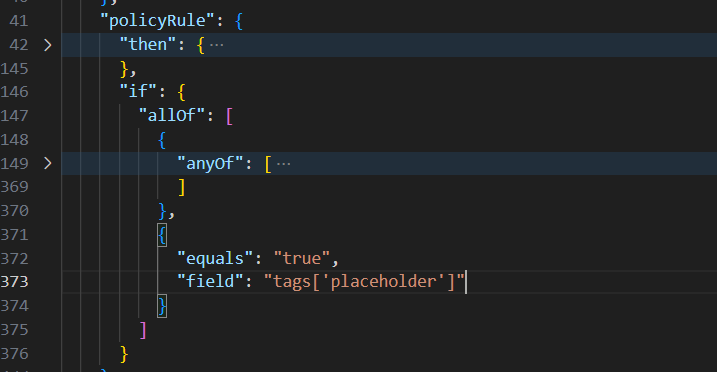
Then replace
{
  "equals": "true",
  "field": "tags['placeholder']"
}
with
{
  "exists":  "false",
  "field":  "tags['Your-Tag-Name']"
}
Option 2: PowerShell
PowerShell is how I have updated the .json file, as I utilise Azure Pipelines to deploy these Policies as it provided better automation capabilities.
# Get the .json file
$policy = Get-Content '.\MyPackageZip_DeployIfNotExists.json' -raw | ConvertFrom-Json

# Define the new tag policy
$tagPolicy = @{field = "tags['agentsExclude']"; exists = "false"}

# Get the pre-defined conditions from New-GuestConfigurationPolicy
$existingAnyOf = $policy.properties.policyRule.if.allOf[0]

# Create a new array with pre defined conditions and new tag policy
$newAllOf = @($existingAnyOf, $tagPolicy)

# Insert the new Array into the allOf object
$policy.properties.policyRule.if.allOf = $newAllOf

# Convert the content back into json and set it as the same name as the input.
$policy | ConvertTo-Json -depth 32 | set-content '.\MyPackageZip_DeployIfNotExists.json'

# ... Other Code (such as New-AzPolicyDefinition) ...
Step 3:
Now your policy definition, when uploaded to azure and with a valid policy assignment, will ignore VMs with the tag ‘agentsExclude’ with any value.
Note: the policy assignment will need ‘Guest Configuration Resource Contributor’ to work.
Step 4:
Result! You should now be able to exclude any VMs you need from the policy, using your tag.
For questions or additional support, feel free to connect with me on LinkedIn